Reviewing changes
diffle serves your working diff as a browser UI. Point it at a ref and it runs git diff, parses the result, and opens a review pane.
diffle HEAD~1See the CLI reference for the full ref syntax.
The file tree
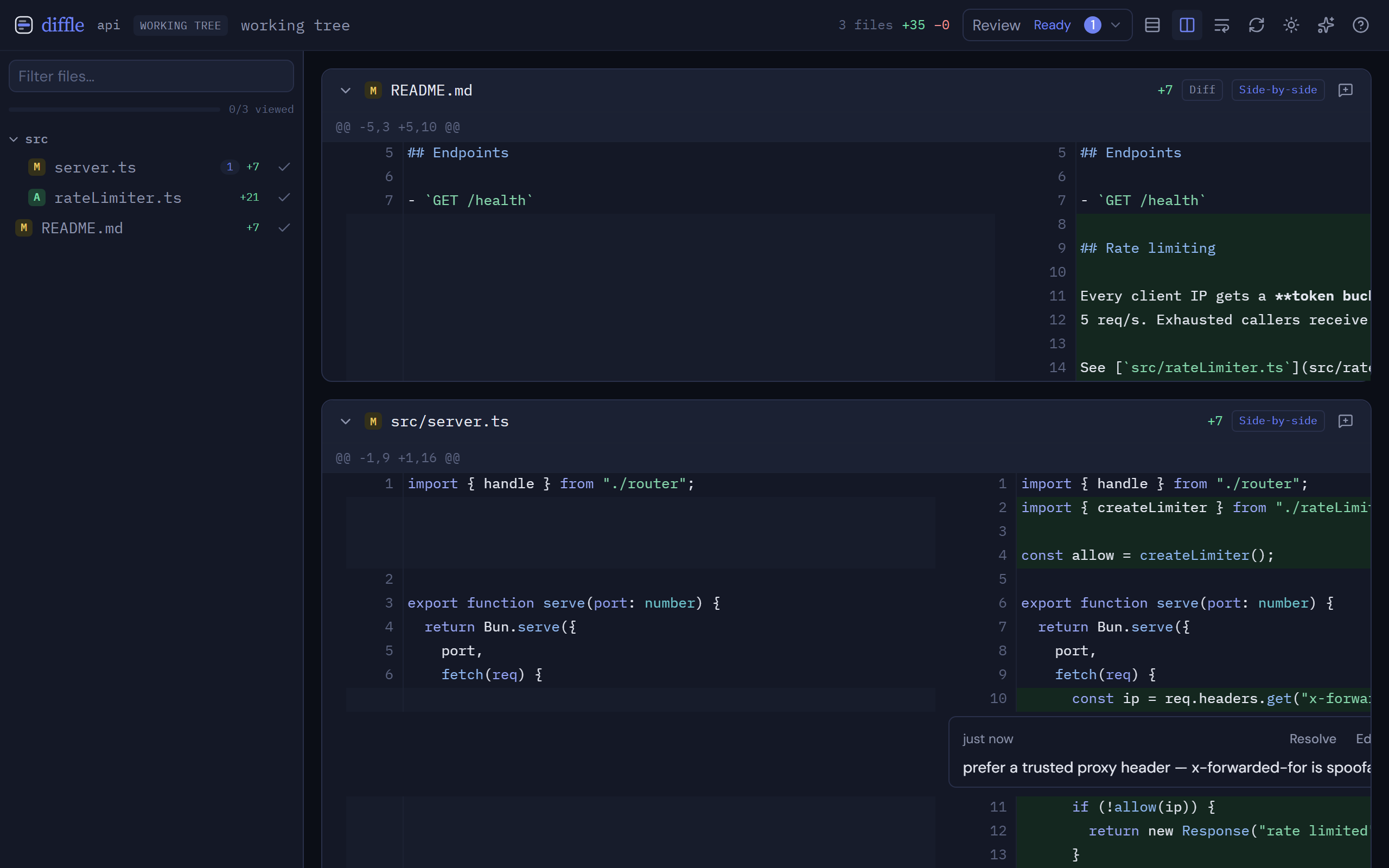
Section titled “The file tree”Every changed file appears in the sidebar tree. Click a file to jump to it. Filter the tree by typing in the filter box to narrow the list to matching paths — useful in large diffs.
Unified vs side-by-side
Section titled “Unified vs side-by-side”Toggle between unified (one column, +/- markers) and side-by-side (old on the left, new on the right) with the s shortcut. Added and deleted files always render unified — there is no counterpart column to show.
Long lines can be hard to scan side-by-side; turn on line wrapping to fold them into the column width instead of scrolling horizontally.
Syntax highlighting
Section titled “Syntax highlighting”Code is highlighted with the same TextMate grammars VS Code uses, so most languages are covered, including Svelte, Vue, and Astro components, and files recognized by name such as Dockerfile and Makefile. diffle reads the surrounding file to work out where each hunk starts, so a change halfway down a <script> or <style> block, or inside a long comment, still highlights correctly. Grammars load only for the languages in your diff.
Single-file vs all-files view
Section titled “Single-file vs all-files view”By default diffle shows one file at a time. Switch to all-files view with o to scroll the entire diff continuously. Use single-file view to focus; use all-files to skim the whole change.
Marking files viewed
Section titled “Marking files viewed”Mark the current file viewed with v (or the checkbox in its header). The viewed progress indicator tracks how many files you’ve cleared, so you can work through a large diff without losing your place.
Live refresh
Section titled “Live refresh”diffle re-runs git diff on demand — press r (or hit Re-run) after you change the code to pull the latest diff into the same session. Your inline comments are preserved across re-runs.
Large files and markdown
Section titled “Large files and markdown”Files above the size threshold are gated behind a load prompt so a huge diff doesn’t stall the pane — click to load an individual file when you want it.
Markdown files show their diff like any other file, plus a per-file Preview toggle that renders the markdown so you can see the formatted result alongside the changes.
Keyboard shortcuts
Section titled “Keyboard shortcuts”| key | action |
|---|---|
j / k |
next / previous file |
v |
toggle viewed on the current file |
s |
unified ↔ side-by-side |
o |
single-file ↔ all-files view |
t |
toggle light / dark |
r |
re-run the diff |
c |
preview review feedback |
? |
shortcut overlay |
Ctrl/⌘ + Enter |
save the open comment |
Esc |
close dialogs, cancel an open comment |
Next steps
Section titled “Next steps”- Leave feedback on the diff with Inline comments.
- Return your comments to an agent with Agent feedback.